
How to Change the Camera in Pokémon X & Y with Cheat Engine
Have you ever wanted to control the camera in Pokémon X/Y as if you were one of the Game Freak developers who made the game? In this tutorial you'll learn to zoom in and out as you please, change the angle the camera points at you, and along the way discover details you'd never noticed in the game, like the way your character is reflected in mirrors (such as the one in your house).
In this guide I explain step by step how to find the camera's memory address and everything you can change with it. To do so, you'll need to play on a PC emulator (Citra, Azahar...) and download Cheat Engine, or play on a 3DS with CTRPF installed so you can search for values in memory. I recommend the first option whenever you can, since it's more complete and offers more search options, but if you're on a 3DS that's fine too, because I also explain how to do it (although the method is a bit longer).
How to find the camera address on an emulator (PC)
Setting up Cheat Engine
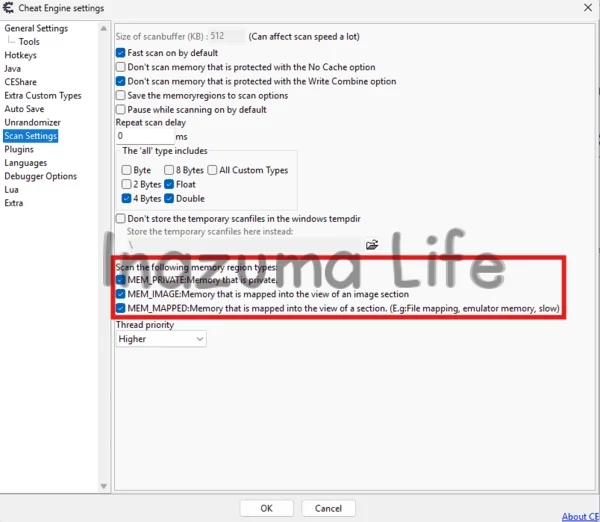
If this is your first time using Cheat Engine, before you start you need to enable a couple of settings. If you skip this step, the program won't scan the emulator's memory and no results will appear in your searches.
- Download and install Cheat Engine from its official website.
- Open Cheat Engine and go to Edit → Settings.
- In the left-hand menu, go to Scan Settings.
- In the Scan the following memory region types section, tick all three boxes: MEM_PRIVATE, MEM_IMAGE and MEM_MAPPED (the last one is the one that includes the emulator's memory).
- Press OK to save the changes.
Finding the camera value
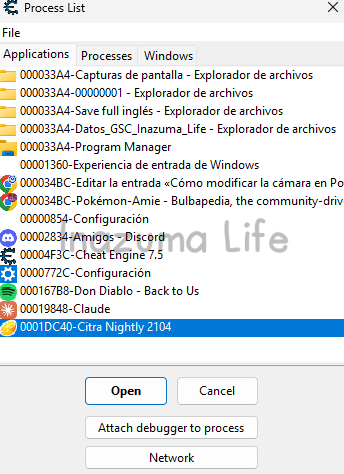
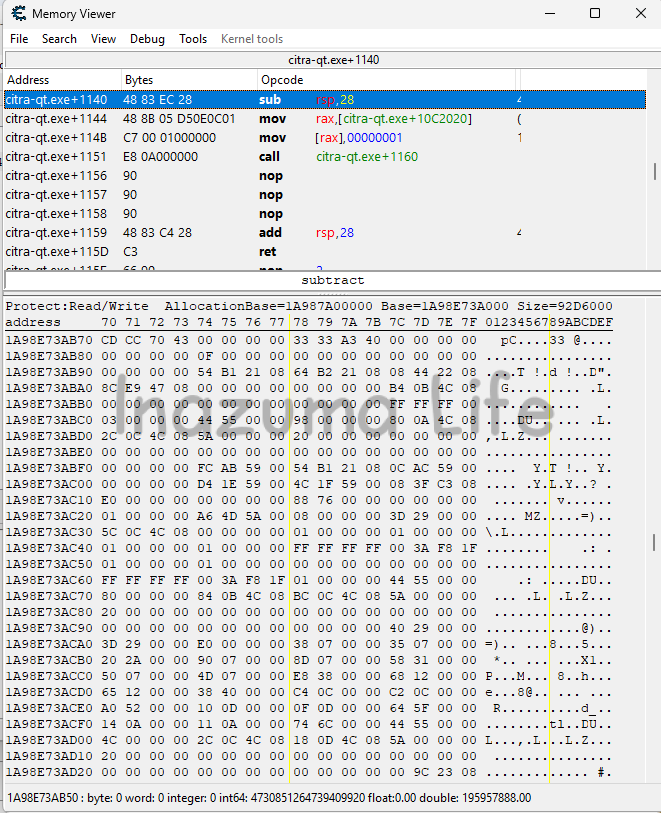
Once Cheat Engine is set up, you can start looking for the camera value. The first thing to do is select the emulator you have open, so the program can read its memory. To do this, click File-> Open Process (top left) or click the monitor with a magnifying glass icon and select the emulator you're using (in my case Citra), as you can see in the image.
Once you've done that, go to any city or town in the game and, under Value Type, select Array of byte. Then paste the byte array from the table:
| Location | Array of byte to search for | Original zoom (float) | Zoom bytes |
|---|---|---|---|
| Normal camera (most locations) | CD CC 70 43 00 00 00 00 33 33 A3 40 00 00 00 00 00 00 00 00 0F 00 00 00 00 00 00 00 00 00 00 00 00 00 00 00 54 B1 21 08 64 B2 21 08 08 44 22 08 | 240.8000031 | CD CC 70 43 |
This array works for the normal camera, which is the one used in the vast majority of the game's locations. It only changes in special places with a dynamic camera (for example, in certain parts of some routes), where this array returns no results because the value is different. So far we've found the following values for those locations:
Once you've pasted the array, click First Scan. As you'll see, a single result appears.
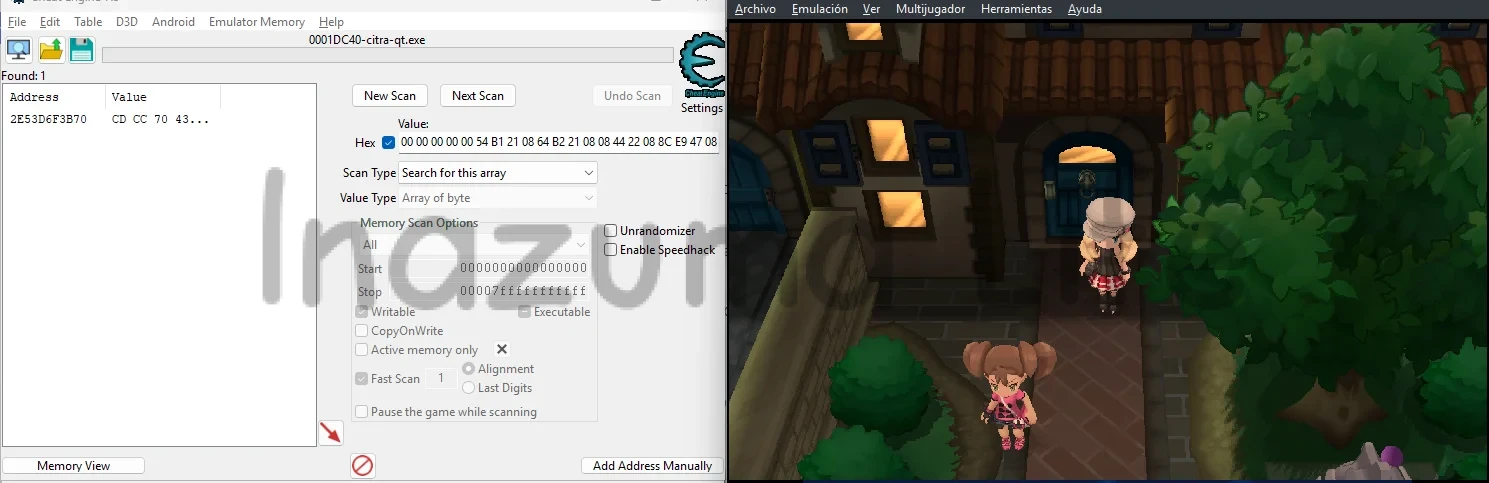
You can also use the method from the 3DS section (searching by float), but I don't recommend it: it's longer, and with the array you find the address on the first try. That said, keep in mind that if you change location, even if the camera still has the same value, you'll have to search again with New Scan, because memory addresses are dynamic and change depending on where you are.
How to find the camera address on 3DS (CTRPF)
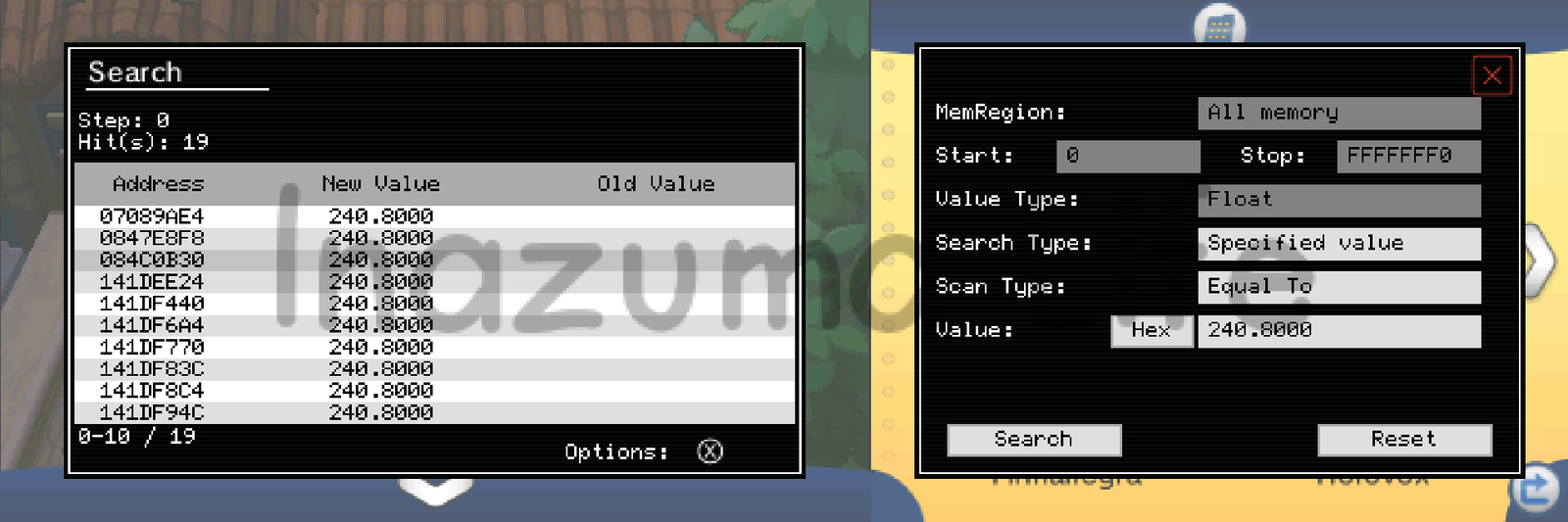
On 3DS the process is very similar, but using the CTRPF memory searcher. Go to any location you like and search for the camera value; in my case, I go back to Vaniville Town. Change the Value Type to float and search for 240.8000031. Quite a few results will appear (around 20), so you'll have to edit them one by one until you find the one that changes the camera. The correct result is usually at an address starting with 08 (08xxxxxx), so try those first. In my case it's the second of the two 08xxxxxx addresses that appear, but yours may differ.
How to change the camera zoom
Once you've located the address, click the result (it has to stay highlighted in blue) and press CTRL+B, or right-click → Browse this memory region. This opens the memory editor, where you can edit the values.
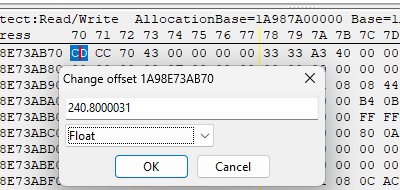
The value that controls the camera zoom is 240.8000031 (float type), which in hexadecimal is 43 70 CC CD (in locations with a dynamic camera the value is different). However, in memory it's stored with its bytes in reverse order (Little Endian format), which is why any memory editor will show it reversed: CD CC 70 43. To change it in Cheat Engine, double-click the first byte (CD) and a dropdown will open. Change the type from 1 byte to Float and you'll see the value in float format, which is much easier to understand and edit than the raw bytes.
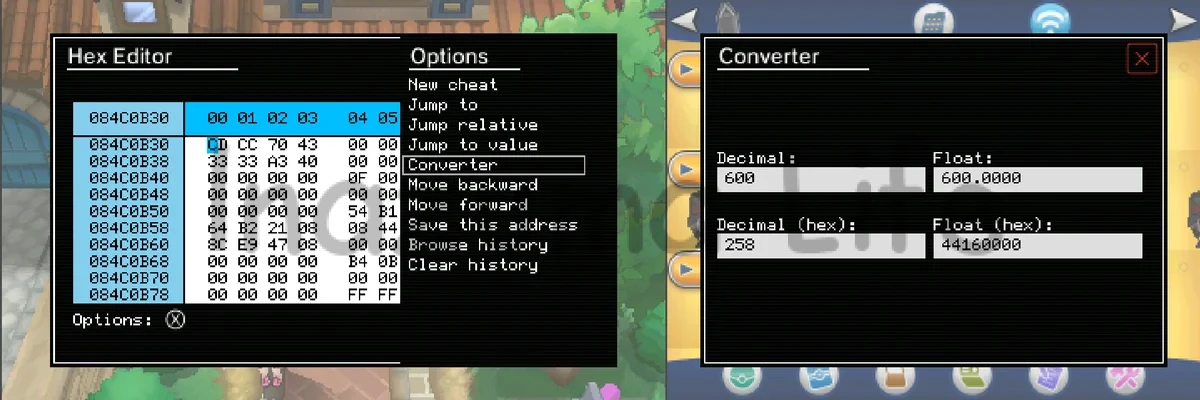
On 3DS, since you searched by float, you can change the value directly from the search results without opening the memory editor. Even so, I recommend using the memory editor, because later on it will let you change other values. In that case, in memory you'll see the value as it is (CD CC 70 43). If you want to change it, select the first byte, press X, choose Converter and enter the new value in the Float field; it will be converted to hexadecimal automatically. Remember to reverse those bytes (Little Endian) before writing them into memory.
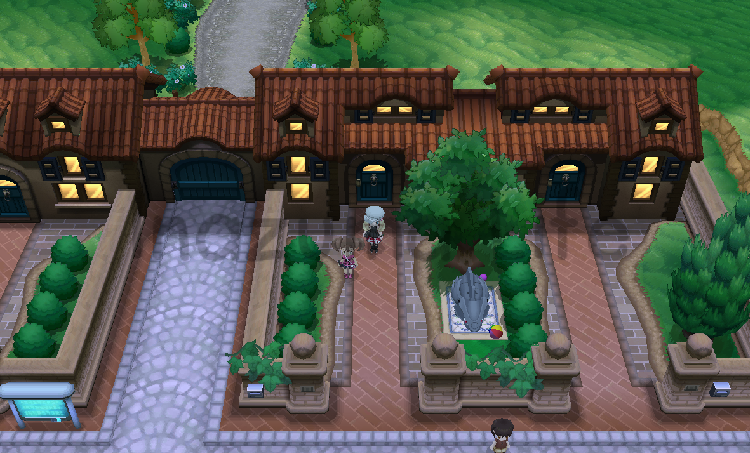
Change it and you'll see the effect instantly: if you set a higher value, the camera zooms out; if you set a lower one, it zooms in. In this example the camera is set to 600 (44 16 00 00 in hexadecimal, which in Little Endian is written 00 00 16 44), and as you can see we get a much wider field of view.
In fact, if you'd rather use this as a ready-made cheat, without having to keep searching for the value in memory, you'll find codes that change the camera in any location without a dynamic camera (including interiors) in my article on Pokémon X and Y Cheats.
What else you can change
Once you've located the address, you don't just control the zoom. Around it there are more values that change the camera in very different ways:
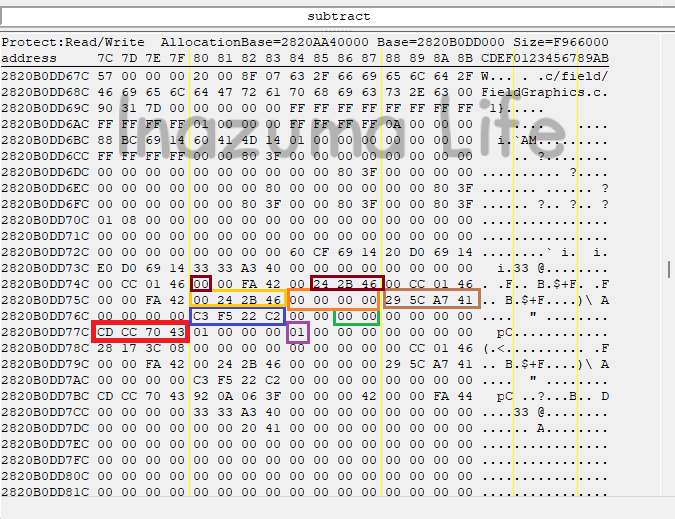
- Zoom:
CD CC 70 43(240.8000031). - Vertical angle:
C3 F5 22 C2(-40.74000168). With a lower value (such as -88.74) the camera tilts until it looks like a top-down view. If you go below -90.74, the camera flips. - Side rotation: raising the value turns the camera to the left, and lowering it turns it to the right.
- Y-axis offset: a higher value raises the camera and a lower one lowers it.
- Stereoscopic range: the range of distances at which your eyes merge the two 3D images to create a sense of depth.
- Stereoscopic plane: the imaginary surface on which all objects are perceived to be at the same distance.
- FOVY (vertical field of view): how much you can see from top to bottom without moving your head. Search for it with
92 0A 06 3F(1057360530) or with92 0A 06 3F 44 55 00 00 E8 00 00 00 1C BB 69 14(0.5235987902). - Tracking mode: decides whether the camera follows the character. 00 = it follows; 01 = it doesn't.
Example: top-down camera
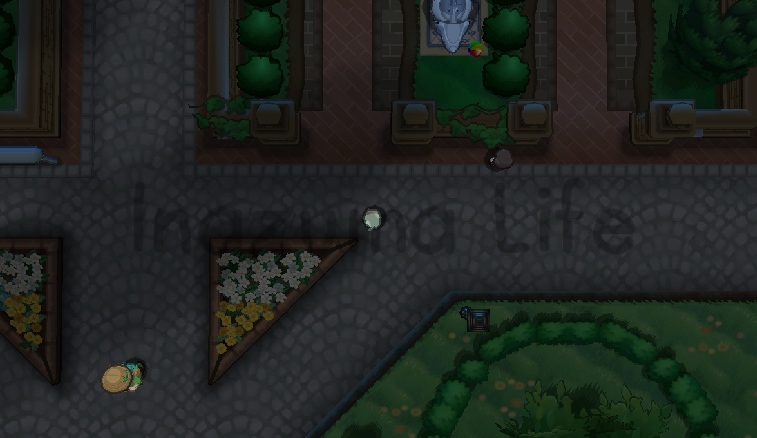
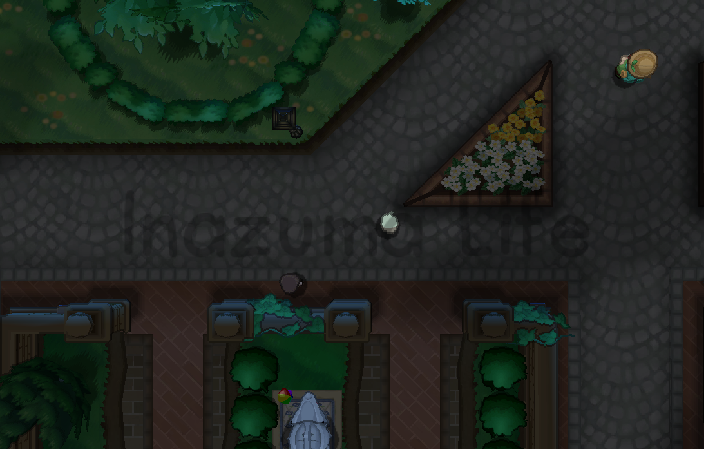
With the vertical angle at -87.74 you get a top-down camera; at -90.74 you reach the limit, and below that value the camera flips.
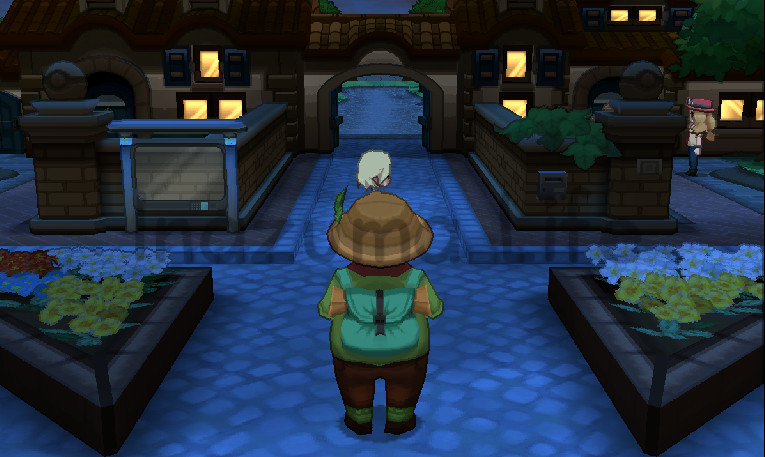
You can also get a third-person camera by setting the angle to, for example, -12.74.
More Pokémon tutorials and cheats
If you enjoyed this tutorial, here's where to go next on the site:

 Español Español
  English (UK)
 Italiano
 Deutsch
 Français
 日本語
日本語
Leave a Reply