
How to Get Infinite Money in Pokémon with Cheat Engine (NDS, 3DS and Switch)
Do you want infinite money in Pokémon so you can buy everything you want in the shop without worrying about running out? In this tutorial I’ll show you how to find the money’s memory address with Cheat Engine and change it to whatever value you want. I’m doing it with Pokémon Ultra Moon on Citra, but the method is the same in most NDS and 3DS games.
To follow this guide you need to play on a PC emulator (DeSmuME, Citra, Azahar...) with Cheat Engine installed, or on a 3DS with CTRPF or a Nintendo Switch with Breeze. In every case the idea is the same: search for a value in the game’s memory in real time and modify it.
Quick summary:
- Check how much money you have and search for it as a 4 Bytes value.
- Spend or earn some money so the number changes.
- Search for the new value with Next Scan until only one address is left.
- Change that address’s value to however much money you want.
Before you start: back up your save file, just in case you modify the wrong address and corrupt your save.
How to find the money address in an emulator (PC)
Setting up Cheat Engine
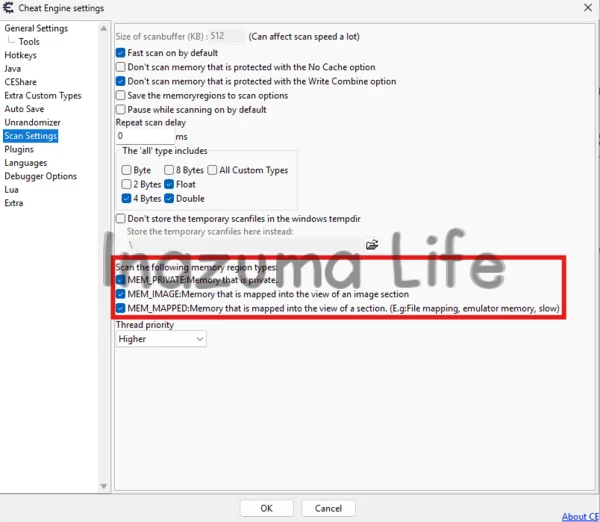
If this is your first time using Cheat Engine, before you start you need to enable a couple of settings. If you skip this step, the program won't scan the emulator's memory and no results will appear in your searches.
- Download and install Cheat Engine from its official website.
- Open Cheat Engine and go to Edit → Settings.
- In the left-hand menu, go to Scan Settings.
- In the Scan the following memory region types section, tick all three boxes: MEM_PRIVATE, MEM_IMAGE and MEM_MAPPED (the last one is the one that includes the emulator's memory).
- Press OK to save the changes.
Search for the money value
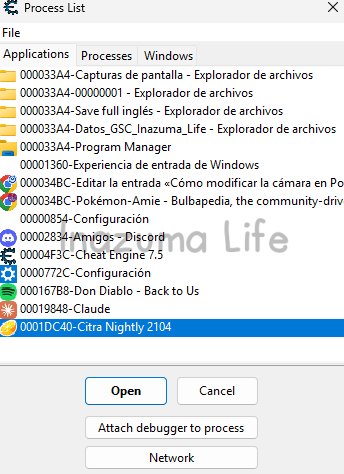
With Cheat Engine configured, you can now search for the money value. The first thing to do is select the emulator you have open so the program can read its memory. Press File → Open Process (top left) or click the monitor icon with a magnifying glass and select your emulator (I use Citra, but if you use another one, or you’re playing a game from another platform such as NDS, select that one), as you can see in the image.
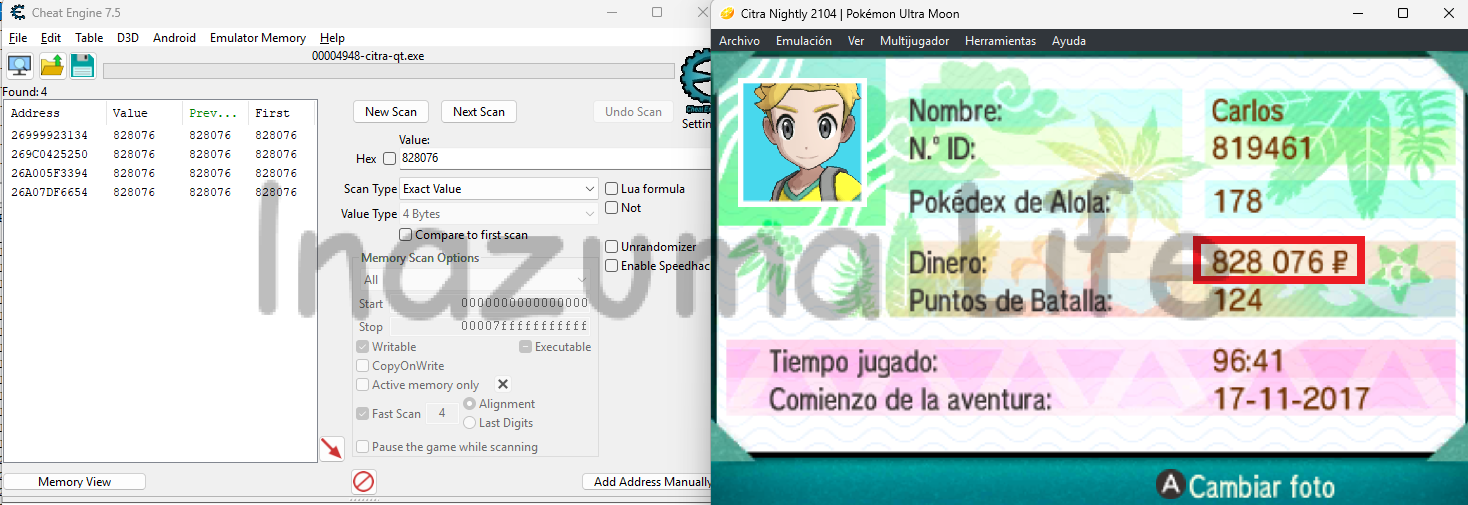
Now open your Trainer Passport or a shop and check how much money you have. In my case it’s 828076. In Cheat Engine set the Value Type to 4 Bytes, type that amount and press First Scan.
It’s normal to get several results, especially if you have little money. I got three addresses, so we need to filter (you could try changing the value of all three blindly, but filtering is cleaner and easier to understand). If you only get one, you already have it and can skip the next step.
Filter the results
To end up with a single address, you need to change your money and scan again. You can win a battle against a trainer or, easier still, buy or sell something in the shop, which takes almost no time. I buy a Poké Ball for 200 ₽, so now I have 827876 ₽. Type that value into Cheat Engine and press Next Scan. I recommend leaving the shop before scanning: the counter should update right away, but sometimes it doesn’t refresh.
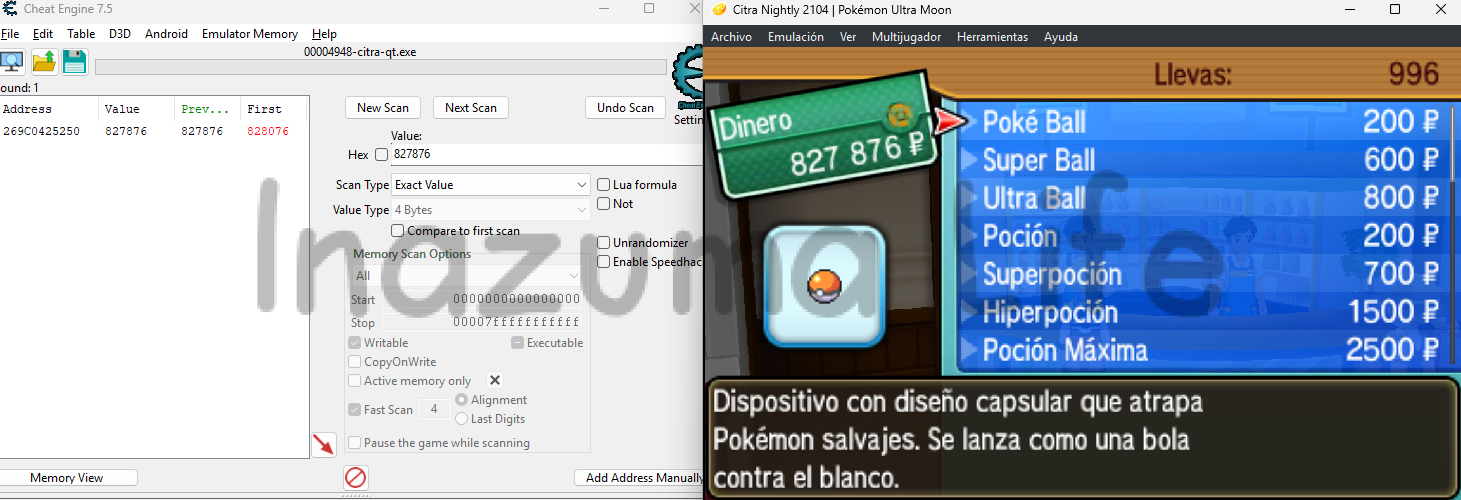
In my case only one address is left. If several are still showing up for you, buy or sell more items and repeat the Next Scan with the new amount until only one remains.
Change the money value
Double-click the result and the address will be added to the list below. There, double-click the Value column and type the value you want. Even easier: select the result above and press CTRL+E, or right-click → Change value of the selected addresses.
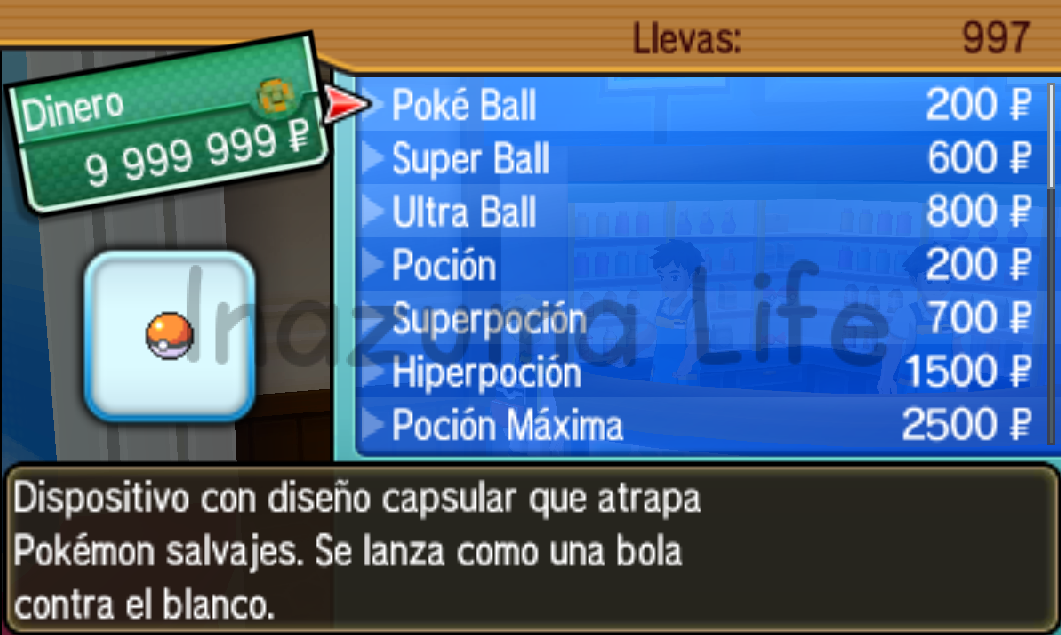
I’m going to set 9,999,999 to have almost unlimited money, which is the maximum in 3DS games. Be careful with NDS games: there the maximum is 999,999, and if you set more, the game’s counter glitches. For those platforms, don’t go over that number. This is how the money looks on the Trainer Passport and in the shop:
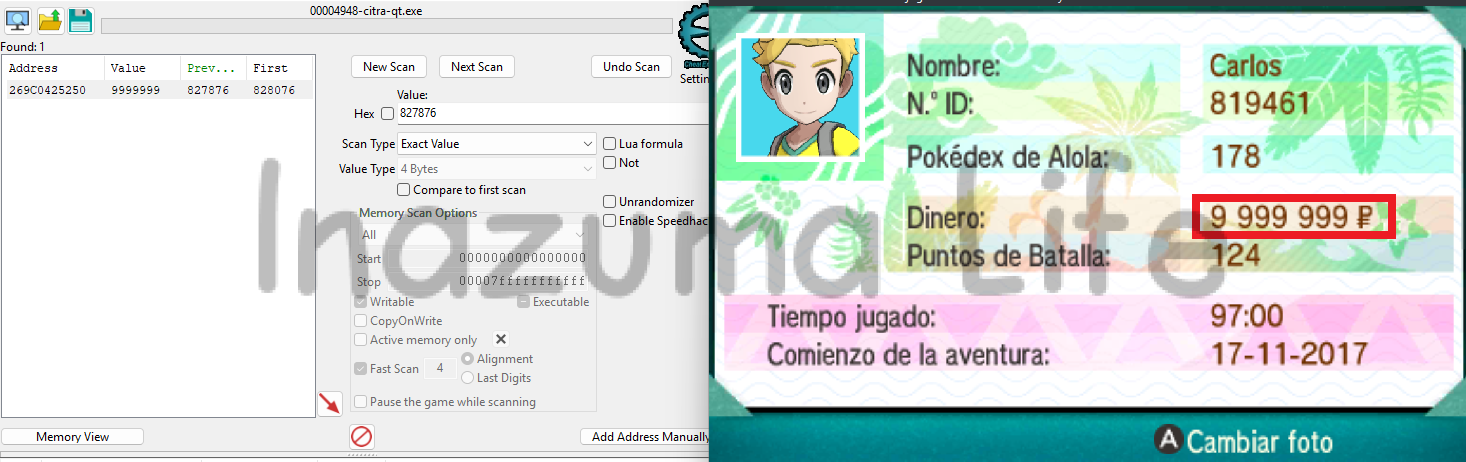
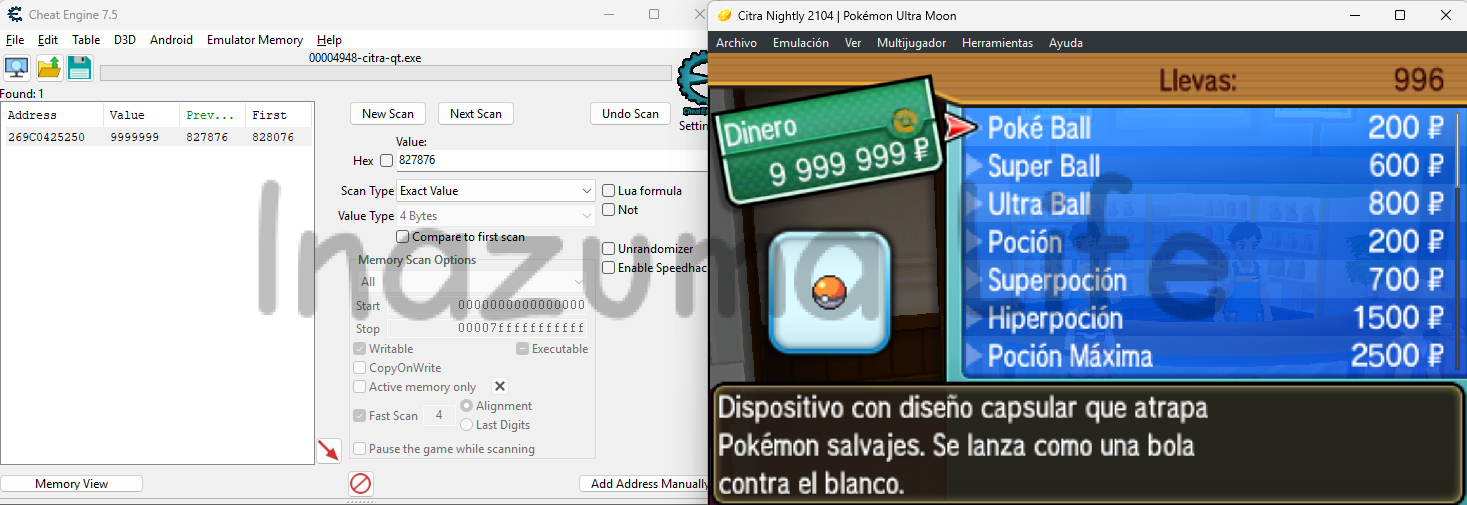
If you don’t want to repeat the whole process every time you play, in my article with Pokémon Ultra Sun and Ultra Moon cheats you’ll find ready-made codes to activate from Citra or a 3DS.
How to find the money address on 3DS/Citra/Azahar (CTRPF)
On a 3DS (with a modded console) or in an emulator like Citra or Azahar with CTRPF access, the process is very similar, but using its own memory search. To do this, press SELECT (or whichever button you’ve assigned to open the CTRPF menu) and go to the Search section. Change the Value Type to 4 bytes, type the amount of money you currently have and repeat the previous steps. There are no New Scan and Next Scan buttons here: just press Search, change your money in the game and press Search again to run a new scan and filter the memory addresses.
In fact, one of the advantages of doing it this way instead of with Cheat Engine is that, if the game has no dynamic addresses, you can see the exact address where the value is stored and create a cheat directly. With Cheat Engine this doesn’t happen, because once the value is located in memory you have to find the real address using other techniques.
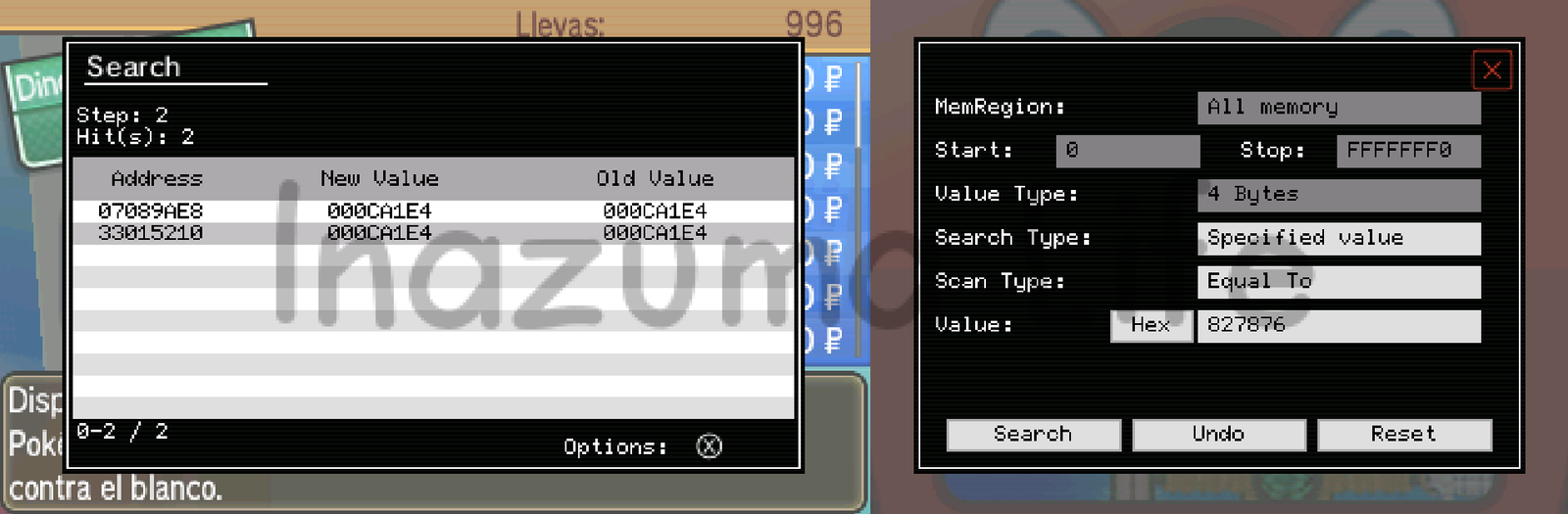
I should mention that sometimes two addresses are left after filtering. It’s usually the higher one, but in the end you can modify one, see if it works and, if not, you know it’s the other. Once you’ve located the address, press the X button, choose Edit and type the value you want.
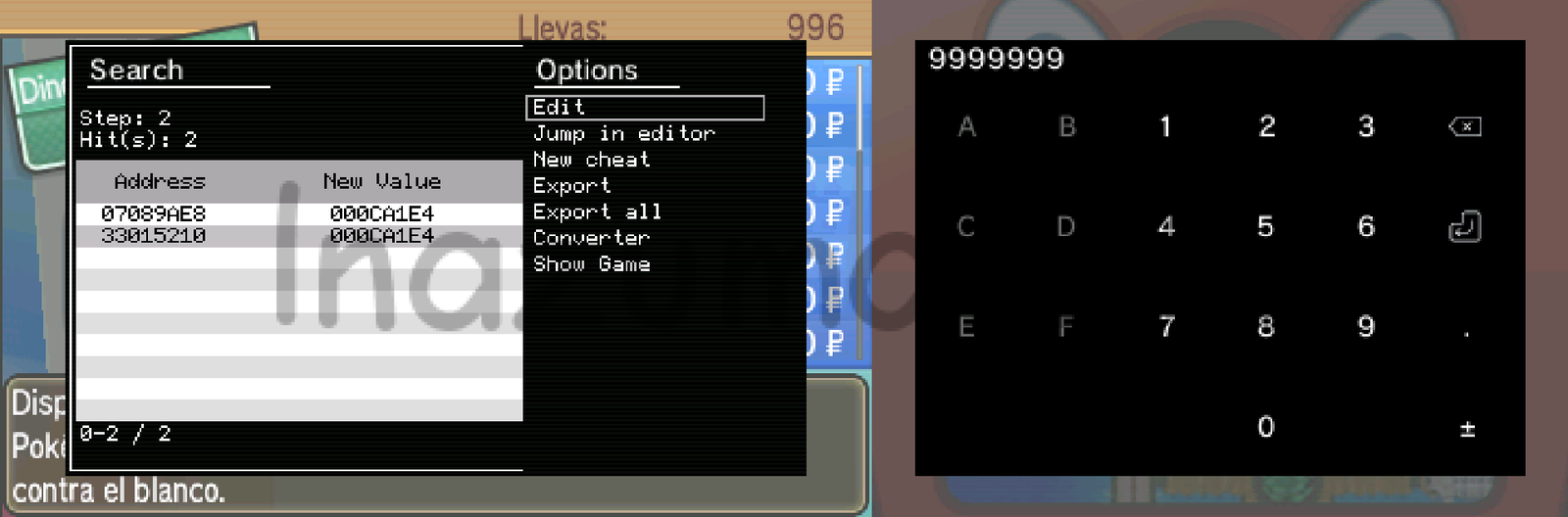
In fact, once the value has been modified, we can do what I mentioned earlier: create a cheat directly so you don’t have to repeat these steps and can activate it whenever you want. To do this, press X again on the address and choose the New Cheat option. Give it whatever name you like (for example 'money') and the cheat editor will open with the code already created.
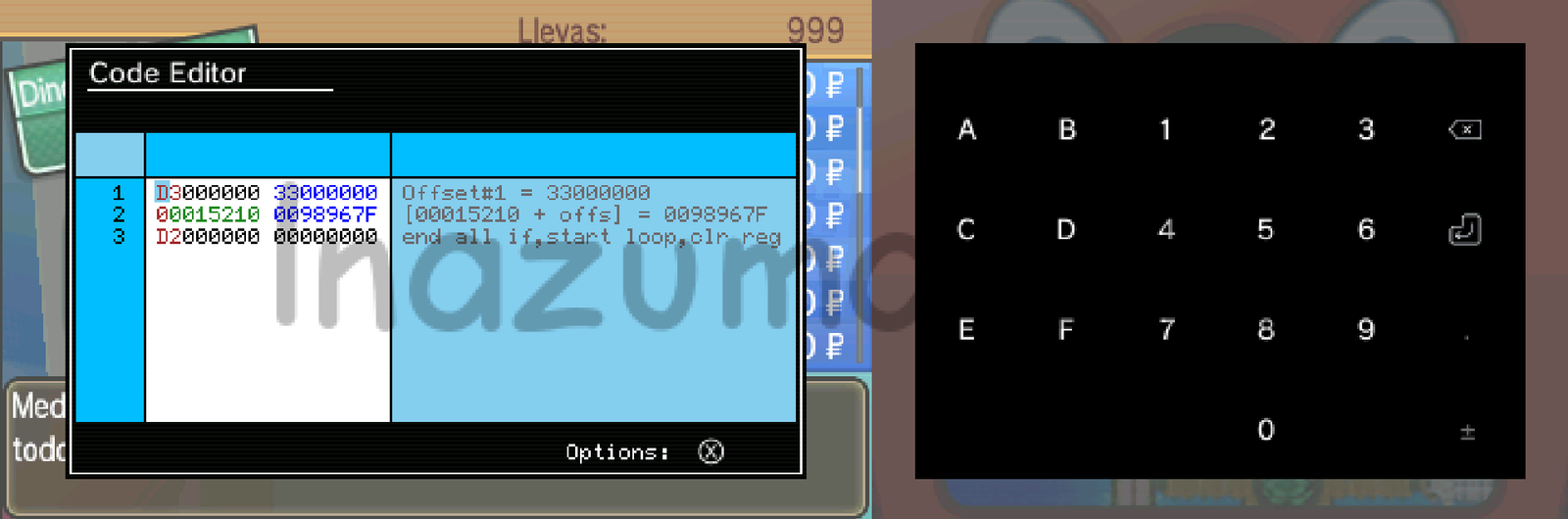
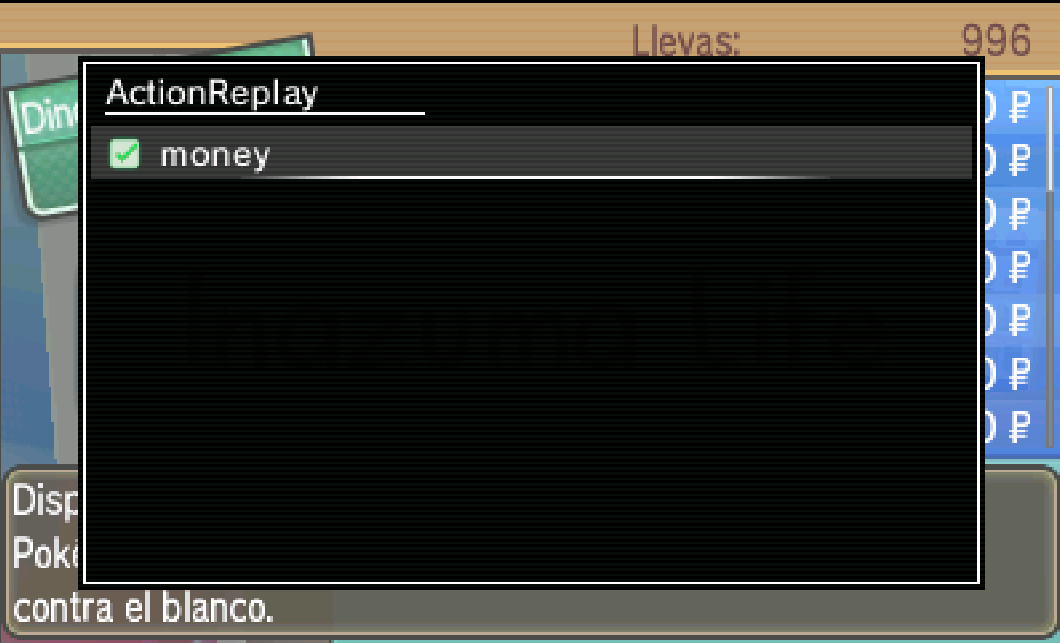
Exit from there (if you want, you can change the value from the editor, but I recommend doing it beforehand so you don’t have to work with hexadecimal values, which are harder to understand). Once that’s done, to activate it, leave the Search section and go to Action Replay, where you’ll see your code already created. Tick it and you’ll see the money stay fixed at 9,999,999 and never go down.
More Pokémon tutorials and cheats
If you enjoyed this tutorial, here's where to go next on the site:

Leave a Reply
 Español Español
 English (UK)
 Italiano
 Deutsch
 Français
 日本語
Related posts